> ## Documentation Index
> Fetch the complete documentation index at: https://docs.datalinks.com/llms.txt
> Use this file to discover all available pages before exploring further.
# Understanding the UI: Settings
> Find your official DataLinks username and generate API tokens.
The Settings page is where you manage your account details and access credentials. From here, you can update your password and create or manage API tokens used to authenticate requests.
You can open Settings from the left navigation at any time.
 ## Page layout
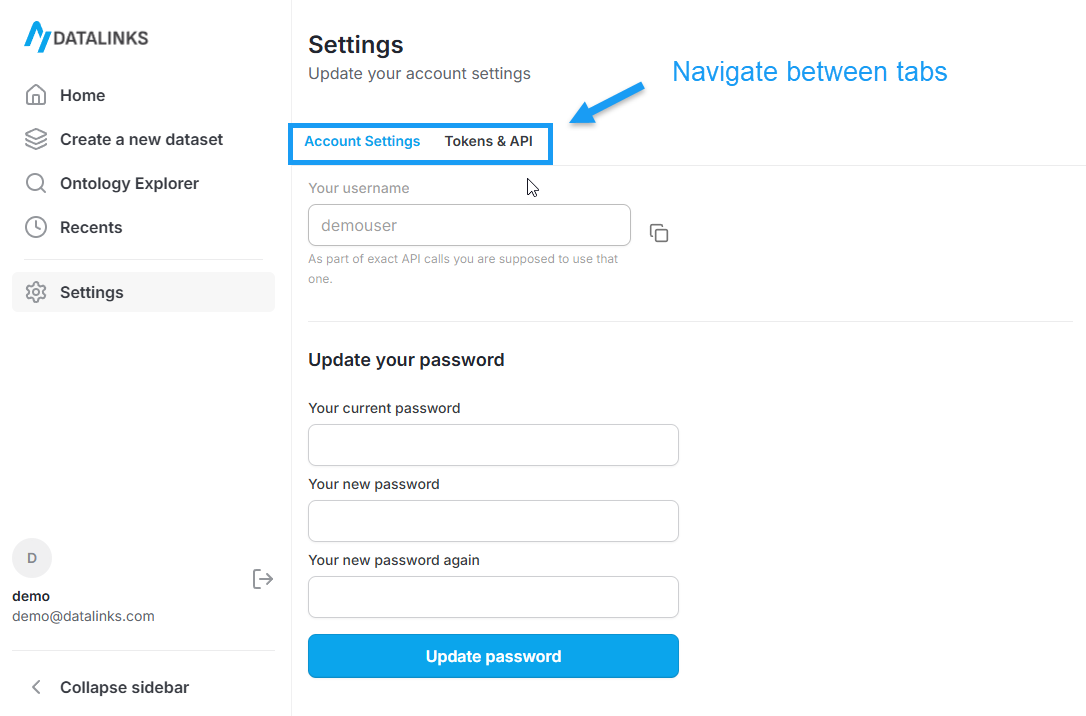
The Settings page is organized into two tabs:
* Account settings
* Tokens
Each tab focuses on a specific set of actions and keeps sensitive operations clearly separated.
## Account settings
Use Account settings to manage your login credentials.
### Update your password
This section lets you change the password associated with your account.
Fields
* Current password: Your existing password
* New password: The password you want to switch to
* Confirm new password: Re-enter the new password to confirm
To update your password:
1. Enter your current password.
2. Enter a new password.
3. Re-enter the new password to confirm.
4. Click **Update password**.
If the update is successful, the new password takes effect immediately.
## Tokens
Tokens are used to authenticate API requests. Each token represents a secure credential that can be used in your applications or integrations.
When no tokens exist, this page shows an empty state with a shortcut to create one.
### Create a new token
Select Create a new token to generate an API token.
On the Create a new token screen, provide the following:
* Token name: A descriptive name to help you recognize the token later
* Expiration date: An optional expiration date for the token
After creating a token, copy it and store it securely. For security reasons, the token value is only shown once.
See [How to get an API token](/how-to/get-api-token) for detailed instructions.
### Managing tokens
From the Tokens tab, you can:
* View existing tokens
* Add new tokens
* Remove tokens that are no longer needed
Deleting a token immediately revokes its access.
## Security notes
* Keep tokens private and store them securely.
* Rotate tokens regularly and remove any that are no longer in use.
* Use password updates if you believe your account credentials may be compromised.
## Page layout
The Settings page is organized into two tabs:
* Account settings
* Tokens
Each tab focuses on a specific set of actions and keeps sensitive operations clearly separated.
## Account settings
Use Account settings to manage your login credentials.
### Update your password
This section lets you change the password associated with your account.
Fields
* Current password: Your existing password
* New password: The password you want to switch to
* Confirm new password: Re-enter the new password to confirm
To update your password:
1. Enter your current password.
2. Enter a new password.
3. Re-enter the new password to confirm.
4. Click **Update password**.
If the update is successful, the new password takes effect immediately.
## Tokens
Tokens are used to authenticate API requests. Each token represents a secure credential that can be used in your applications or integrations.
When no tokens exist, this page shows an empty state with a shortcut to create one.
### Create a new token
Select Create a new token to generate an API token.
On the Create a new token screen, provide the following:
* Token name: A descriptive name to help you recognize the token later
* Expiration date: An optional expiration date for the token
After creating a token, copy it and store it securely. For security reasons, the token value is only shown once.
See [How to get an API token](/how-to/get-api-token) for detailed instructions.
### Managing tokens
From the Tokens tab, you can:
* View existing tokens
* Add new tokens
* Remove tokens that are no longer needed
Deleting a token immediately revokes its access.
## Security notes
* Keep tokens private and store them securely.
* Rotate tokens regularly and remove any that are no longer in use.
* Use password updates if you believe your account credentials may be compromised.